A media remote for your computer
Watching on a computer connected to the TV, or across the room? Media Remote puts playback, volume and subtitles on your iPhone or iPad, with shortcuts to the streaming apps you use.
Updated October 14, 2026 · PalmDesk 1.0
Quick answer
PalmDesk’s Media Remote mode controls whatever is playing on your Mac or Windows PC from your iPhone or iPad: play and pause, skip back or forward, previous and next, volume and mute, subtitles and full screen. Up to four shortcuts open services such as Netflix, YouTube, Prime Video or Disney+. No video is streamed while you use it, so the computer isn’t capturing its screen.
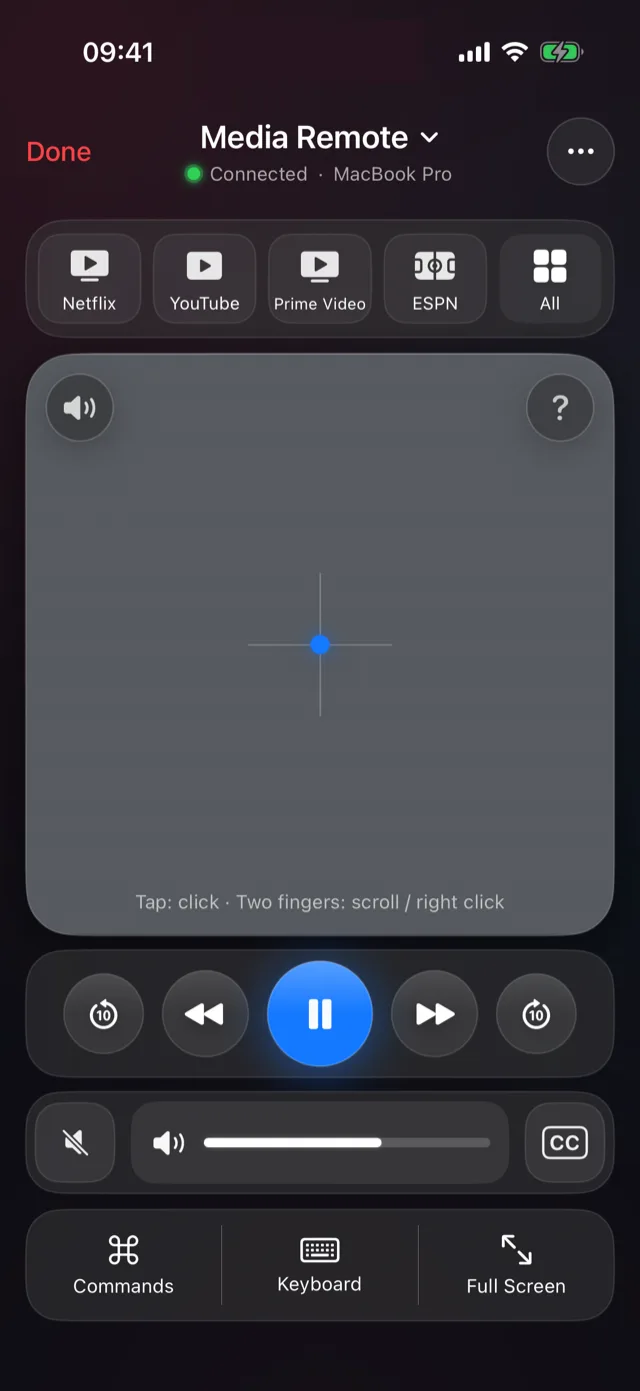
Everything you reach for on the couch
- Playback: play/pause, previous and next, skip back and forward.
- Sound: a volume slider, volume up and down, and mute.
- Picture: full screen and subtitles.
- A trackpad in the middle for the moments you need the pointer.
On Windows: Chrome, Edge, Firefox, Brave, Spotify, VLC and MPC. On a Mac: Safari, Chrome, QuickTime Player, Music, Spotify, VLC and IINA. How far a skip jumps depends on the player.
Shortcuts to your streaming apps
Keep up to four one-tap shortcuts. Netflix, YouTube, Prime Video and ESPN are there by default; swap in Disney+, Hulu, Apple TV, Max, DAZN, beIN SPORTS, Spotify, Twitch, discovery+ or Plex.
How to use your iPhone as a media remote
Set up PalmDesk
Install PalmDesk on your iPhone or iPad and the free app for Mac or Windows on your computer, then pair them once.
Choose Media Remote
Tap your computer with Media Remote selected, or switch to it from any other mode.
Start playing
Open a shortcut or start anything in a supported player; the controls act on what’s playing.
Good to know
- In Media Remote, sound keeps playing from the computer and its speakers or TV. To hear it on your phone, open Live Display.
- Shortcuts open the service on the computer; you still sign in to it there.
Questions
Can I control Netflix on my computer from my iPhone?
Yes. Open Netflix from the Media Remote shortcut or in your browser, then use play, pause, skip, volume, subtitles and full screen from the phone.
Does it work with Spotify?
Yes. Playback and volume work with Spotify and other music players on the computer.
Can it control a TV box or a smart TV?
No. It controls a Mac or Windows PC. It’s built for a computer that is connected to a TV or that you watch from across the room.
Stay on the couch.
PalmDesk 1.0 is in final preparation for the App Store. This page will link to it the day it goes live.