Use your iPad as a remote for your Mac or PC
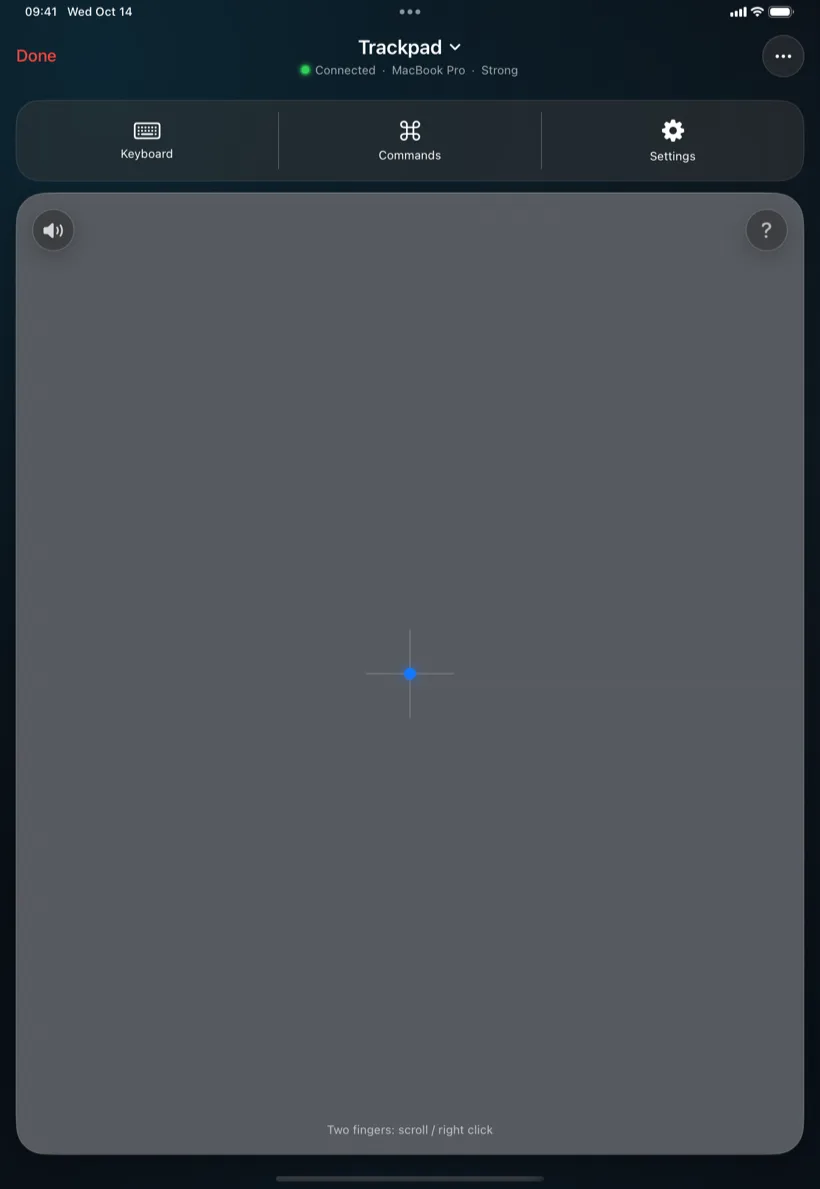
An iPad gives PalmDesk room to breathe: a trackpad the size of a laptop’s, a bigger view of your computer, and remotes you can use from across the room, in portrait or landscape.
Updated October 14, 2026 · PalmDesk 1.0
Quick answer
PalmDesk is one app for iPhone and iPad (iPadOS 17 or later). Install it on the iPad, put the free PalmDesk app on your Mac or Windows PC, pair them once and tap the computer. On the iPad you get a larger trackpad, Media Remote and Presentation Remote, free on the same Wi‑Fi, and Live Display of the whole screen with PalmDesk Pro. It controls the computer’s own screen; it doesn’t add a second display.
What the larger screen gives you
- A bigger trackpad for precise pointing and long drags.
- A bigger view of your Mac or PC in Live Display, sharp up to 4K.
- Every orientation, so the iPad can sit in a stand or in your lap.
- The same pairing: a computer pairs with your iPhone and your iPad, and one uses it at a time.
Set it up
Install both apps
PalmDesk from the App Store on the iPad, and the free PalmDesk app for Mac or Windows on the computer.
Pair once
Choose Add Device on the computer and scan its QR code with the iPad, then confirm on both screens.
Pick a mode
Trackpad, Media Remote, Presentation Remote or Live Display, and switch any time.
Questions
Can my iPad be a second monitor for my PC?
No. PalmDesk shows and controls the screens your computer already has. For a Mac, Apple’s Sidecar turns an iPad into a second display.
Does one PalmDesk Pro subscription cover my iPhone and iPad?
Yes, every iPhone and iPad signed in to the App Store with the same account; restore purchases on each.
Can I use it with the iPad in landscape?
Yes. Every mode works in portrait and landscape, and Live Display fills the screen when you turn the iPad sideways.