
Use your iPhone as a presentation remote
Walk away from the laptop. Presentation Remote turns your iPhone or iPad into a clicker with a timer and a laser pointer, for PowerPoint, Keynote and decks in the browser, on a Mac or a Windows PC.
Updated October 14, 2026 · PalmDesk 1.0
Quick answer
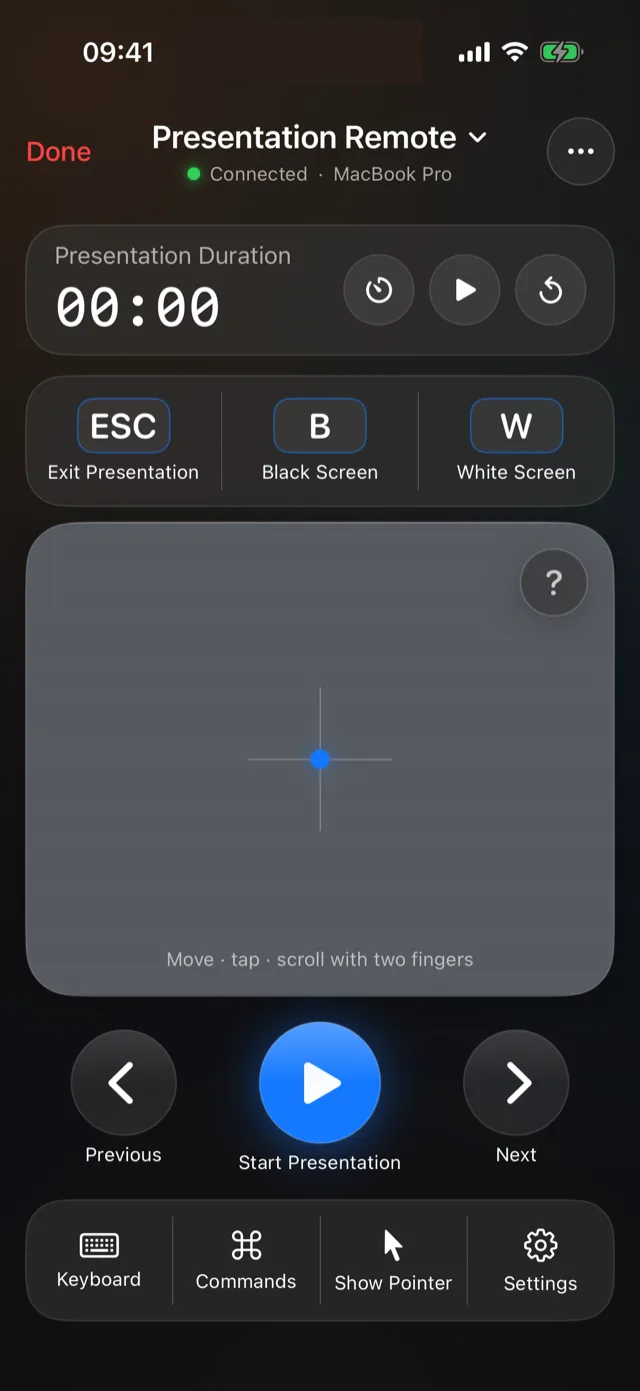
Open Presentation Remote in PalmDesk to start, advance and end a slideshow on your computer from your iPhone or iPad. It sends next and previous, black (B) and white (W) screen, Esc and a laser pointer, and shows a timer with warnings.
What works where
| App | Mac | Windows |
|---|---|---|
| PowerPoint | Yes | Yes |
| Keynote | Yes | — |
| PowerPoint on the web | Yes | Yes |
| Google Slides | Yes | Yes |
| Canva, Prezi | Yes | Yes |
Made for the front of the room
Timer with warnings
Set a target of 10 to 60 minutes; PalmDesk tells you when five minutes are left and when time is up.
Pointer on screen
Show the computer’s pointer on the slide and move it from the trackpad panel, like a laser pointer.
Black or white screen
Tap B or W to blank the screen when you want the room’s attention on you, not on the slides.
How to present from your iPhone
Open your deck on the computer
PowerPoint, Keynote or a supported deck in the browser.
Choose Presentation Remote
Tap your computer on your iPhone or iPad with Presentation Remote selected.
Start and advance
Tap Start Presentation, then Next and Previous. Use B or W to blank the screen and Esc to exit.
Questions
Can I use my iPhone as a PowerPoint remote?
Yes, on a Mac or a Windows PC, for PowerPoint itself and PowerPoint on the web. Presentation Remote starts and advances the slideshow, keeps time with a timer, and turns the screen black or white.
Does it work with Keynote?
Yes, on a Mac.
Does it work in a conference room without the venue’s Wi‑Fi?
The phone and the computer need a connection to each other: the same Wi‑Fi, which is free, or an internet connection on both with PalmDesk Pro.
Present from anywhere in the room.
PalmDesk 1.0 is in final preparation for the App Store. This page will link to it the day it goes live.