How to control a Windows PC from your iPhone
Your iPhone can be a trackpad and keyboard for your PC, a remote for Netflix and PowerPoint, and, with PalmDesk Pro, a live view of the whole Windows screen. Here is how to set it up in a few minutes.
Updated October 14, 2026 · PalmDesk 1.0
Quick answer
Install the free PalmDesk for Windows on the PC and PalmDesk on your iPhone, scan the QR code the PC shows, and tap the PC. Trackpad, Media Remote and Presentation Remote are free when both are on the same Wi‑Fi. Seeing and controlling the screen (Live Display) and connecting from another network come with PalmDesk Pro, with a 7-day free trial. It works on every edition of Windows 10 version 2004 or later and Windows 11, Home included.
What you need
- A Windows PC with Windows 10 version 2004 or later or Windows 11. Intel and AMD (x64) PCs, and ARM64 PCs with Windows 11. Windows in S mode isn’t supported.
- An iPhone or iPad with iOS or iPadOS 17 or later.
- The same Wi‑Fi for the free modes. From anywhere else, PalmDesk Pro.
Set it up
Install PalmDesk for Windows
Download the free PalmDesk for Windows and run the installer. It installs for every user, starts when you sign in and waits in the notification area.
Install PalmDesk on your iPhone
Get PalmDesk from the App Store. It’s one app for iPhone and iPad.
Pair them once
On the PC choose Add Device. In PalmDesk on your iPhone, add a computer and scan the QR code (or type the 9-digit code), then confirm the fingerprint on both screens.
Tap your PC and pick a mode
Trackpad, Media Remote, Presentation Remote or Live Display. You can switch between them without reconnecting.
What your iPhone can do on Windows
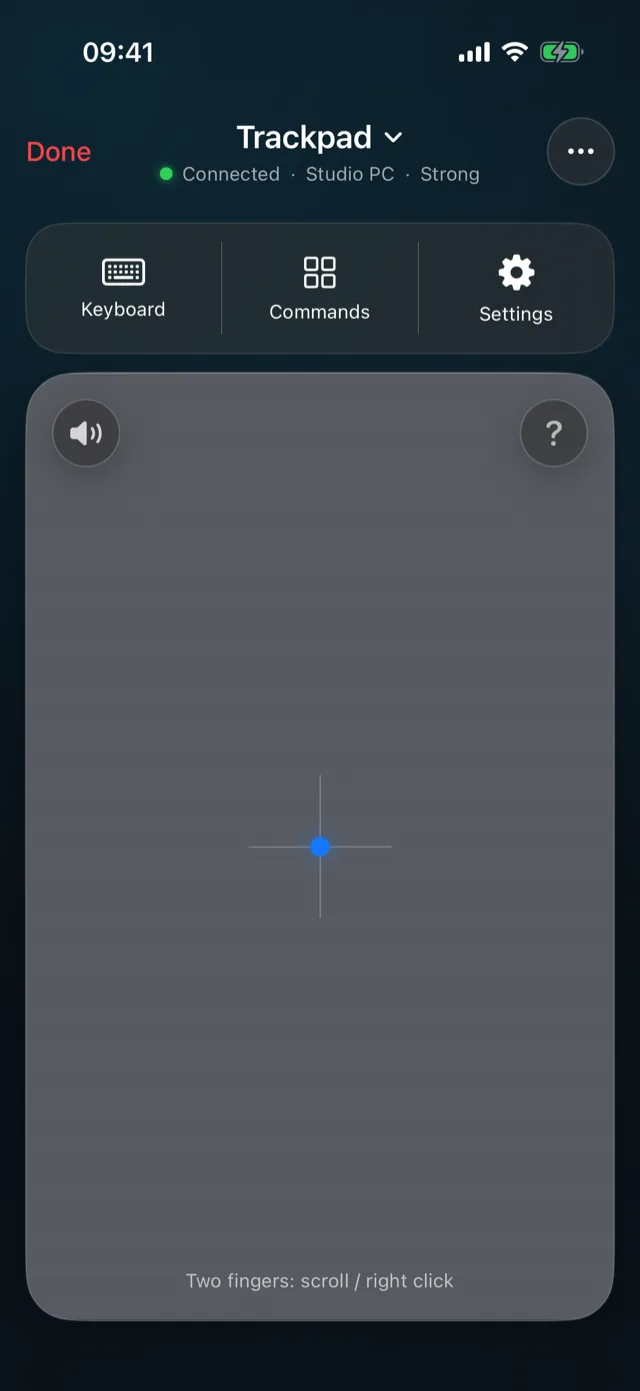
- Trackpad and keyboard. Move, click, right-click, scroll and drag; three fingers up for Task View, four fingers sideways between virtual desktops; type with Ctrl, Alt and the Windows key. Mouse guide
- Media Remote. Play, pause, skip, volume and subtitles in Chrome, Edge, Firefox, Brave, Spotify, VLC and MPC. Media Remote
- Presentation Remote. PowerPoint and web decks such as Google Slides, with a timer and a laser pointer. Presentation Remote
- Live Display (Pro). The PC’s screen at its own resolution, up to 4K, with touch control and the PC’s sound. Live Display
Good to know on Windows
- Set your Wi‑Fi to Private in Windows Settings. On networks marked Public, Windows Firewall blocks nearby connections, and PalmDesk shows a card saying so.
- To control apps running as administrator, start PalmDesk the normal way (Start menu or sign-in). If it was started another way, it offers to restart itself.
- The PC must be on, awake and signed in. Live Display pauses while the lock screen or a User Account Control prompt is showing.
Questions
Does it work with Windows 11 Home?
Yes. PalmDesk works on every edition of Windows 10 version 2004 or later and Windows 11 except S mode. Windows’ own Remote Desktop can’t connect to Home editions; see remote desktop on Windows Home.
Is it free?
The PC app is free, and the iPhone app’s Trackpad, Media Remote and Presentation Remote are free on the same Wi‑Fi. Live Display, access from other networks and more than one computer are part of PalmDesk Pro: $2.99 a month or $19.99 a year, with a 7-day free trial.
Can I control my PC from outside the house?
Yes, with PalmDesk Pro and Internet Connections turned on in the PC app. PalmDesk connects directly when it can and through an encrypted relay when it can’t; no port forwarding or VPN is needed.
Do I need Bluetooth or a cable?
No. Everything goes over your network, end-to-end encrypted.